 MultiverseOSP
How to set up the Wedding Budget Planner
Google Sheets or Excel. About 10 minutes. Prefer to be walked through it? Open the AI guide (bottom corner) and choose Walk me through setup.

Hi, I'm Ava the Fox, your AI setup guide! Follow along below, or let me walk you through it one step at a time in the chat.
Download this guide as a PDF (also included with your purchase)
Open it in Google Sheets
- Download the .xlsx from your download page or email (the link works 3 times in 24 hours; save the file somewhere you'll find it).
- Go to drive.google.com, click New > File upload and choose the .xlsx.
- Open the uploaded file, then choose File > Save as Google Sheets. Work in the new Google Sheets copy (it has the green icon).
- Formulas, dropdowns and colors carry over. If a sheet asks to allow editing a protected range, click OK: gray cells are protected only to prevent accidents (no password).
Open it in Excel
- Download the .xlsx and double-click it. Works in Excel 2010 or newer, Microsoft 365 and Excel for Mac (also LibreOffice Calc).
- If Excel shows a yellow Protected View bar, click Enable Editing (files from the internet always open that way). There are no macros to enable.
- Save a copy under your own name (File > Save As) so you always have the clean original.
Color code: yellow cells are for typing, gray cells are formulas. Tabs: Start Here, Example, Budget, Vendors, Payments Due, Guests.
Setup, one step at a time
Open the file
Open the workbook (see Google Sheets or Excel below). Start on the Start Here tab, then look at the filled-in sample so you can see it working.

Ava's tip: You've got this! Take it slow, there's no rush.
Budget (top)
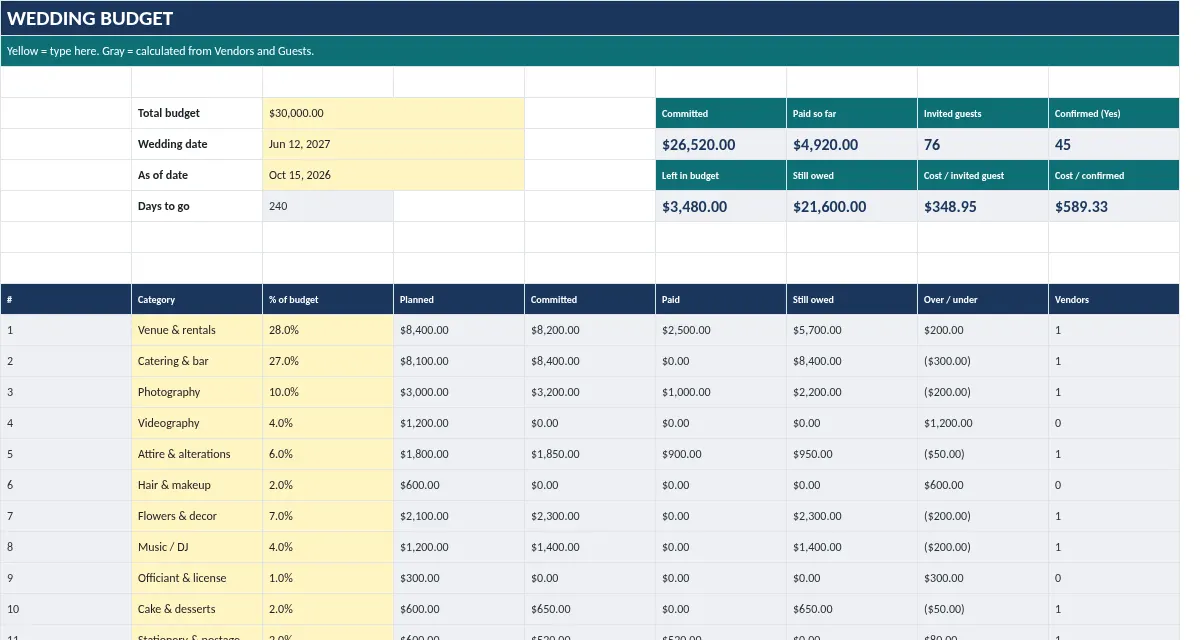
Type your total budget, the wedding date, and today's date (the 'as of' date that drives 'due soon' and 'overdue').
Ava's tip: Nice! One step down. Little steps add up fast.
Budget
Adjust the category list and the % of budget for each. The % column should add to 100%; the total shows in gray.
Ava's tip: Look at you go! If anything looks odd, the troubleshooting list below has your back.
Vendors
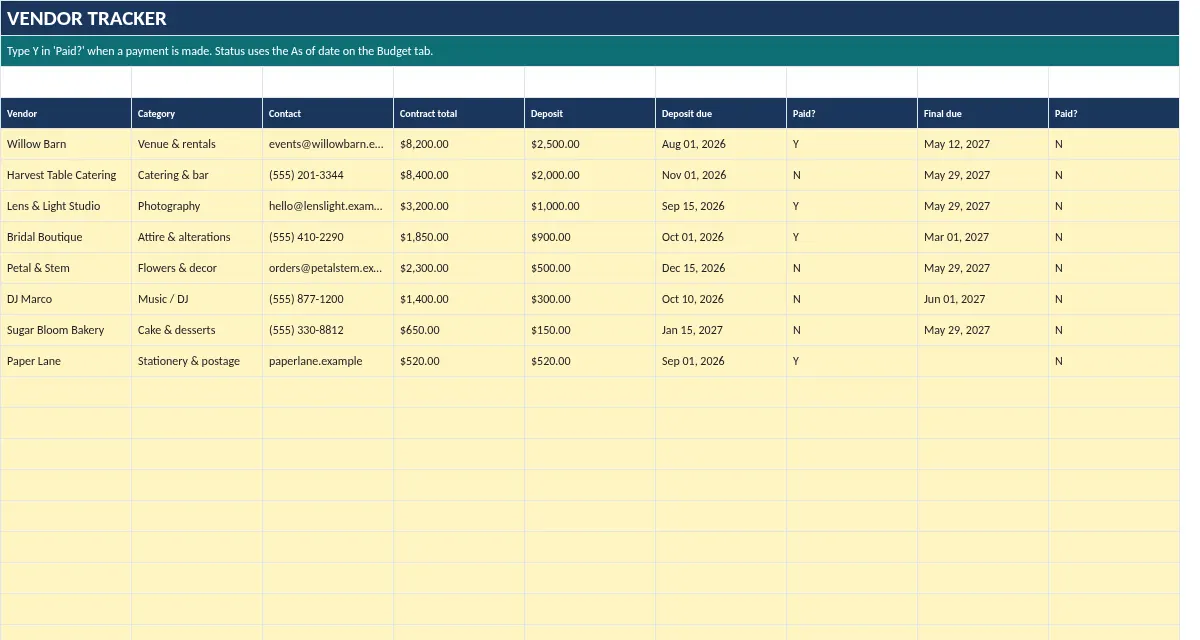
One row per booked vendor: category (dropdown), contract total, deposit and due date, final due date. Type Y when each payment is made.
Ava's tip: Halfway-ish and doing great. Keep going!
Payments Due
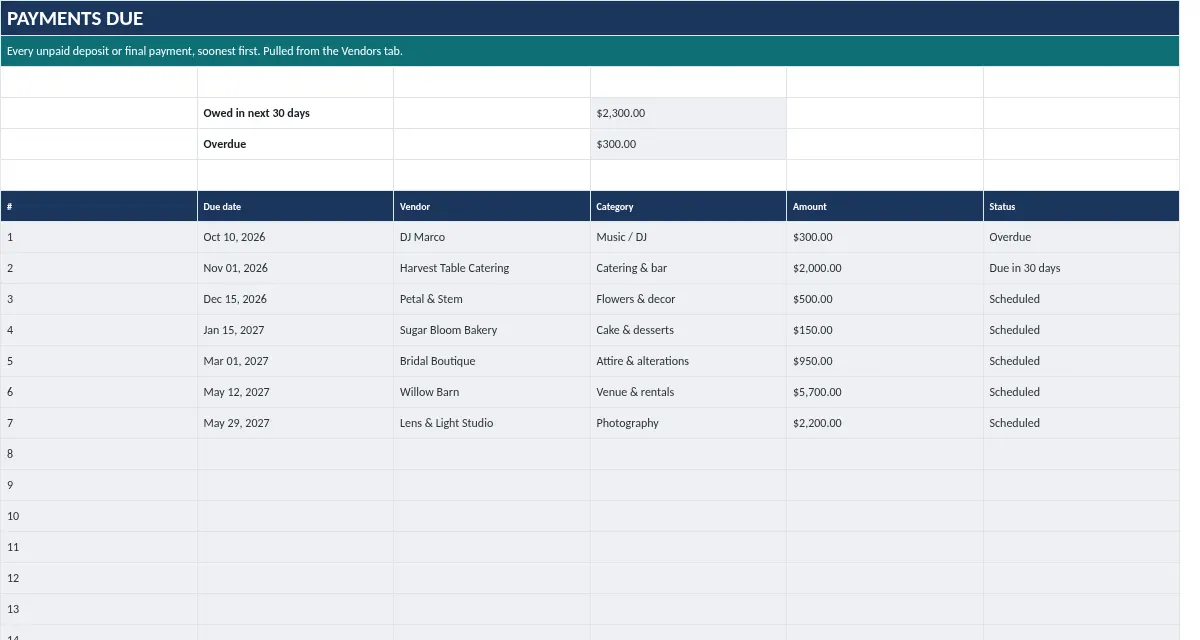
Read the next payments in date order, with red for overdue and gold for due within 30 days.
Ava's tip: Ooh, you're really getting the hang of this.
Guests
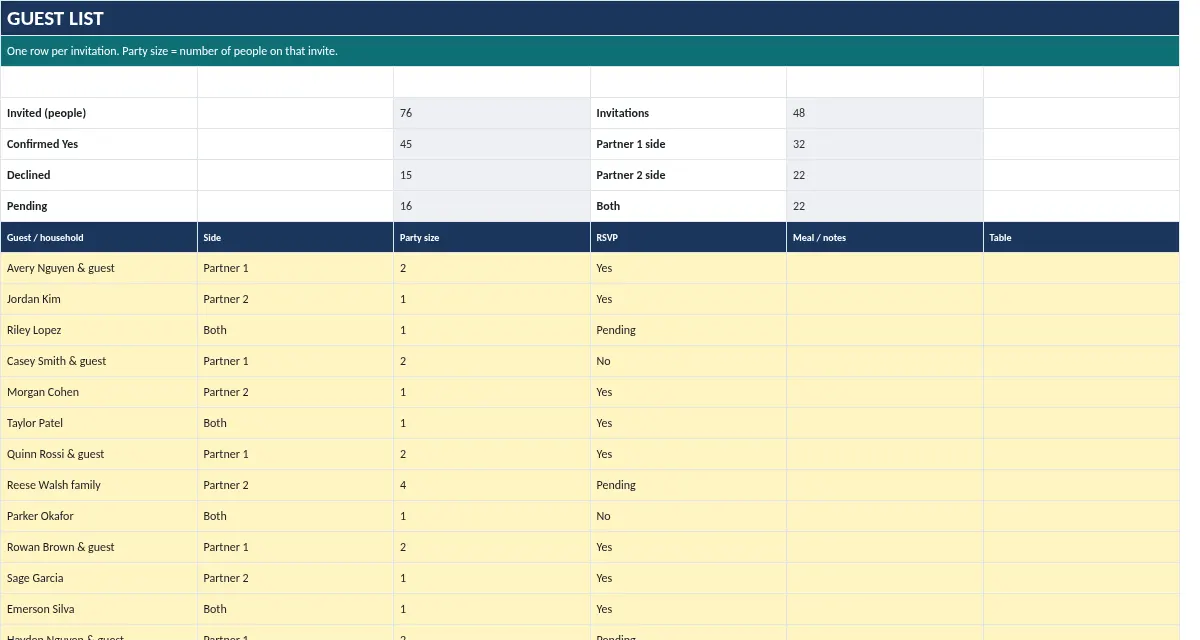
One row per invitation: party size and RSVP (Yes / No / Pending). Headcount and cost per guest update on the Budget tab.
Ava's tip: Almost there! I can see the finish line.
Make it yours
Replace the sample values in the yellow cells with your own. Gray cells calculate automatically. Save.
Ava's tip: Woohoo, last step! You did it. Give yourself a cheer!
Troubleshooting
The download link says expired or used up
Each link works 3 times within 24 hours. Email Grokedgepm@proton.me with your order email and we'll send a fresh link.
I didn't get the email
Check spam and promotions for 'downloads@multiverseosp.com'. Your download page also appeared right after checkout. Still nothing? Email us your order email.
A cell shows #REF!, #VALUE! or #NAME?
Usually a gray formula cell was typed over or a row was deleted. Press Undo, or start again from the original file. Type only in yellow cells.
Dates look like numbers (e.g. 46310)
Select the cell and set Format > Number > Date. In Google Sheets also check File > Settings > Locale matches your country.
Can I delete the sample data?
Yes. Clear the yellow cells only (select, press Delete). Don't delete whole rows; the formulas expect them.
Still stuck? Email Grokedgepm@proton.me with your order email, or ask the AI guide to pass your question to a person.
Back to the Wedding Budget Planner
Informational tool only. Not financial, tax, or legal advice. Guide written with AI assistance and checked by hand.